Assigning Supervisors
Depending on your Timesheet Settings, Timesheets may need to be approved by a school supervisor, a workplace supervisor, or both. Before Timesheets can be processed, the relevant supervisor must be assigned in the system.
School Supervisor
Manual assignment
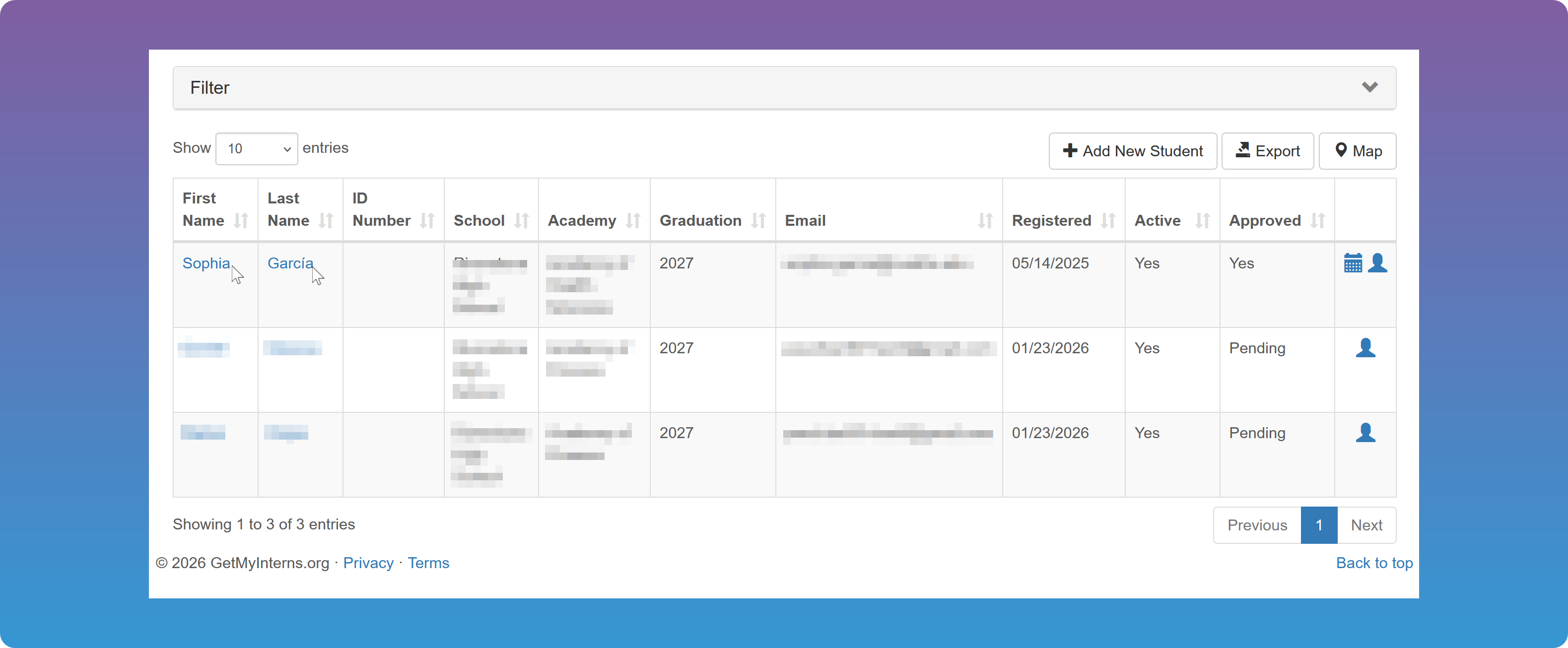
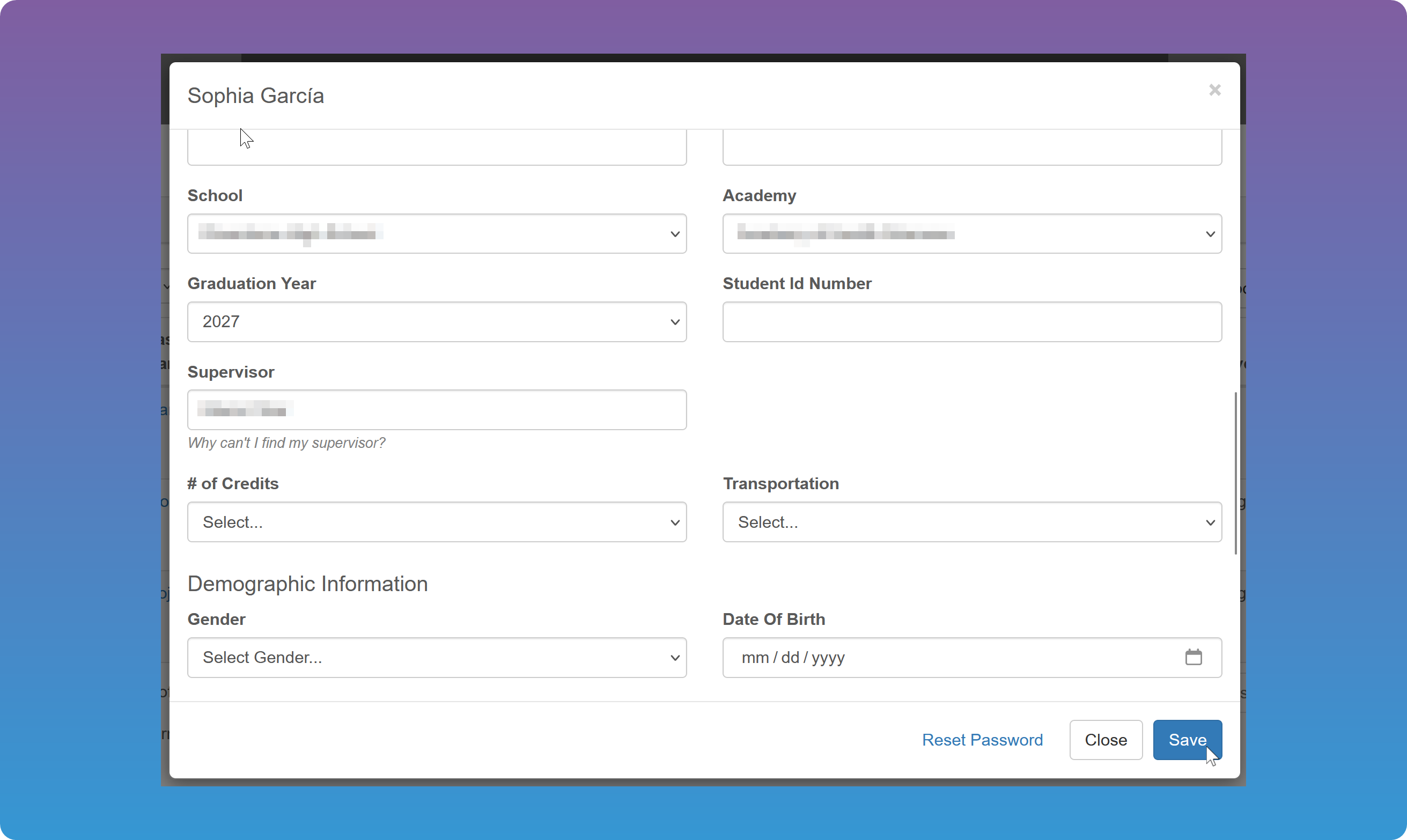
The school supervisor is assigned on the Students details modal.
- Open the
Student's details by tapping on their name anywhere on the platform.
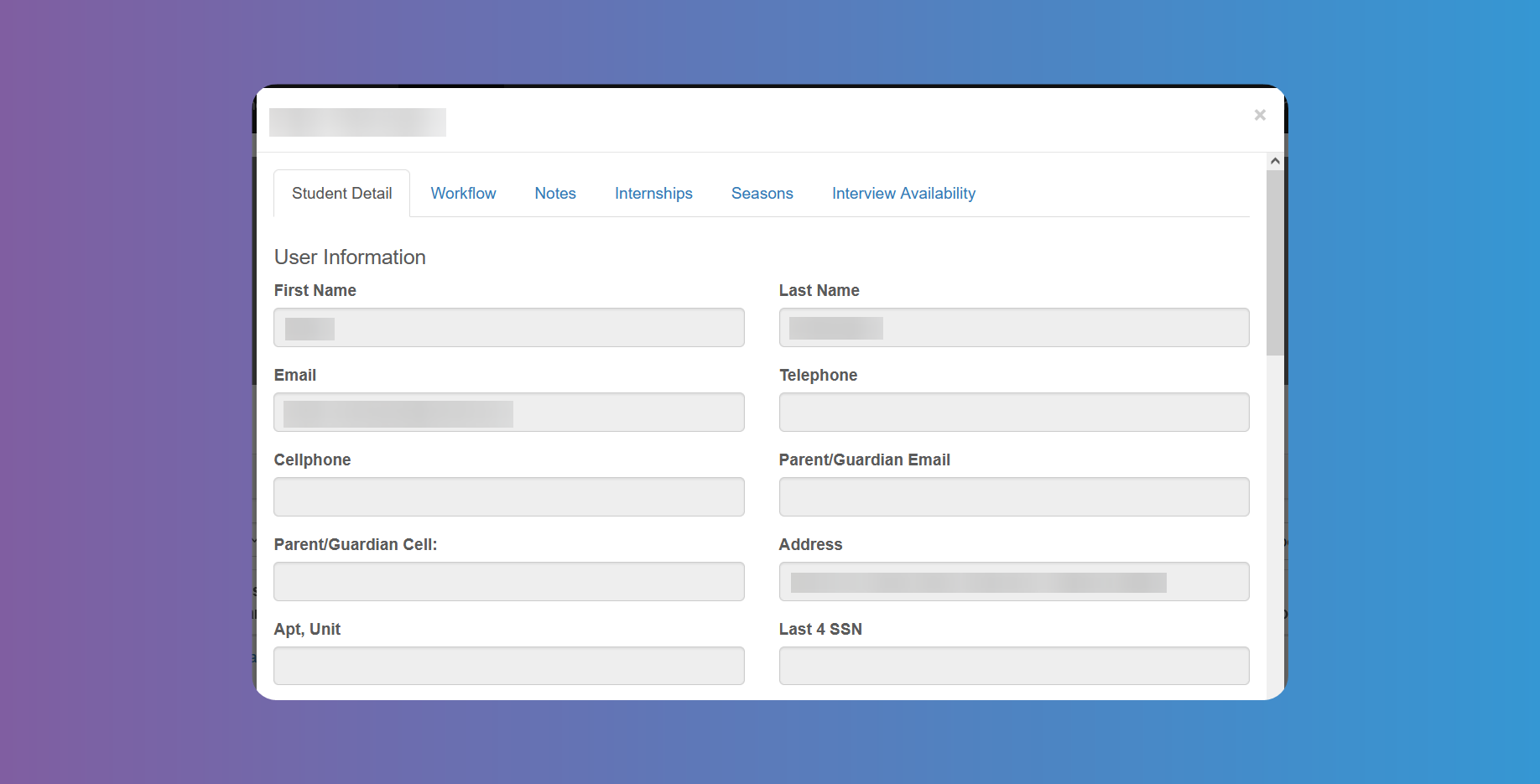
- Go to the first tab Student Detail and tap on the yellow button Edit.
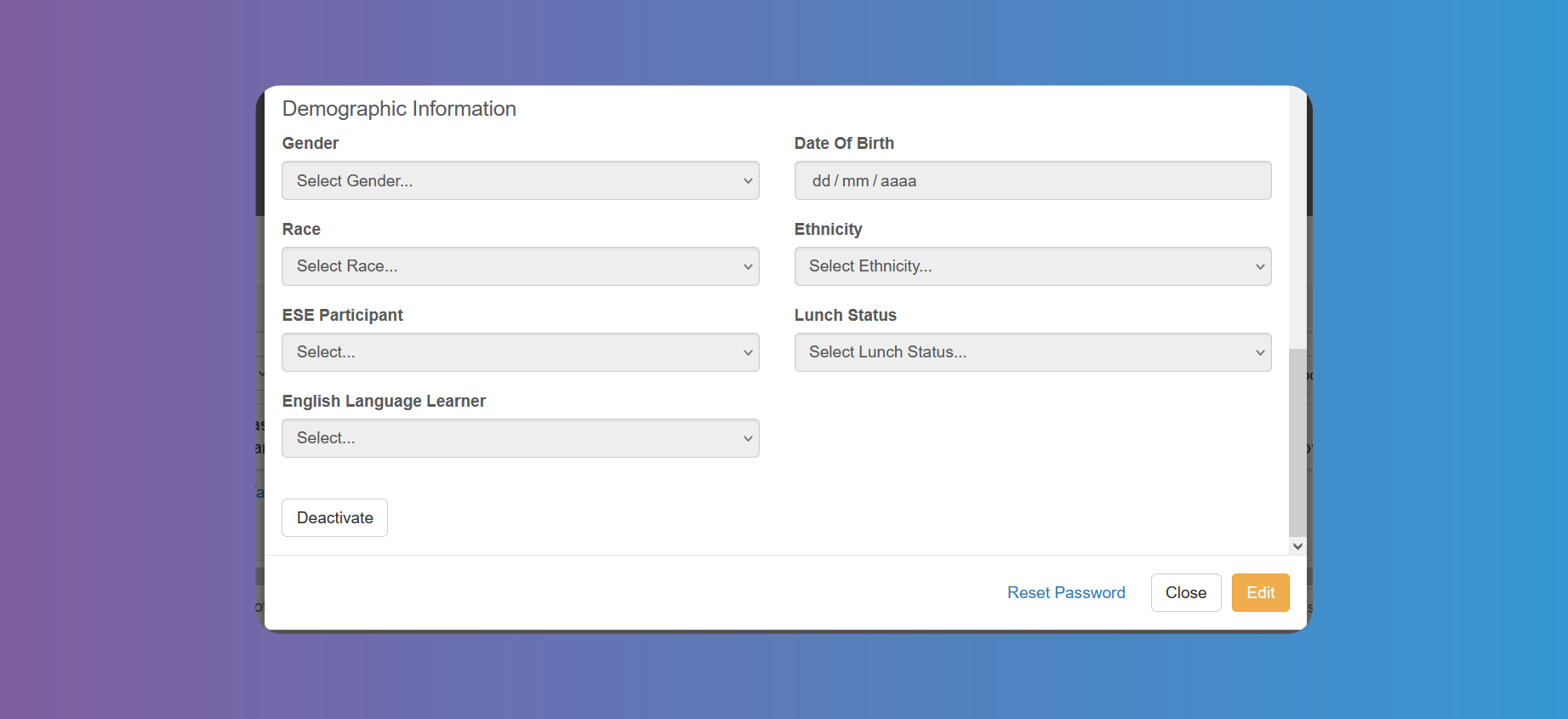
- Enter the supervisor in the School Supervisor field.
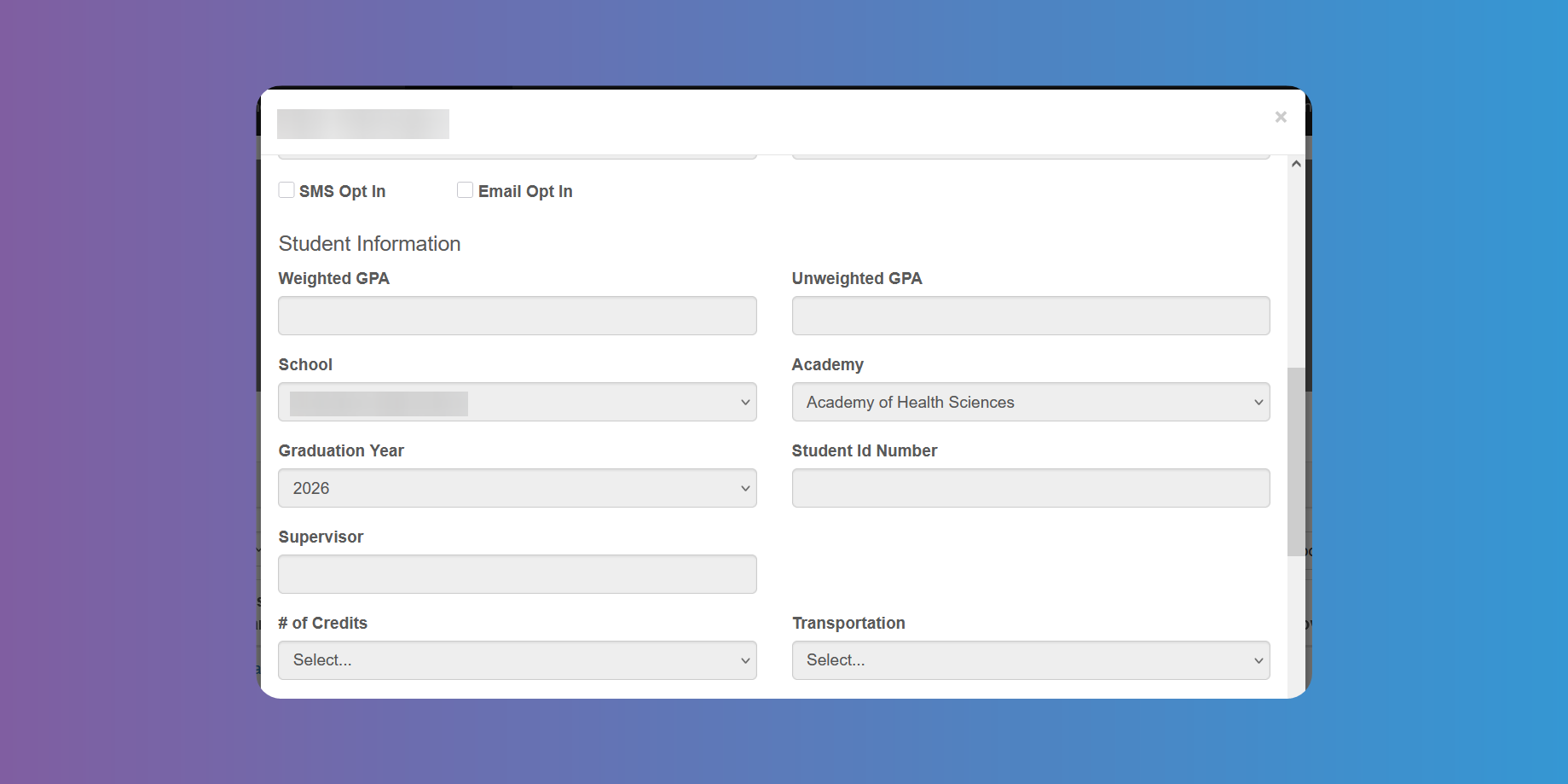
- Save the changes.
Batch assingment
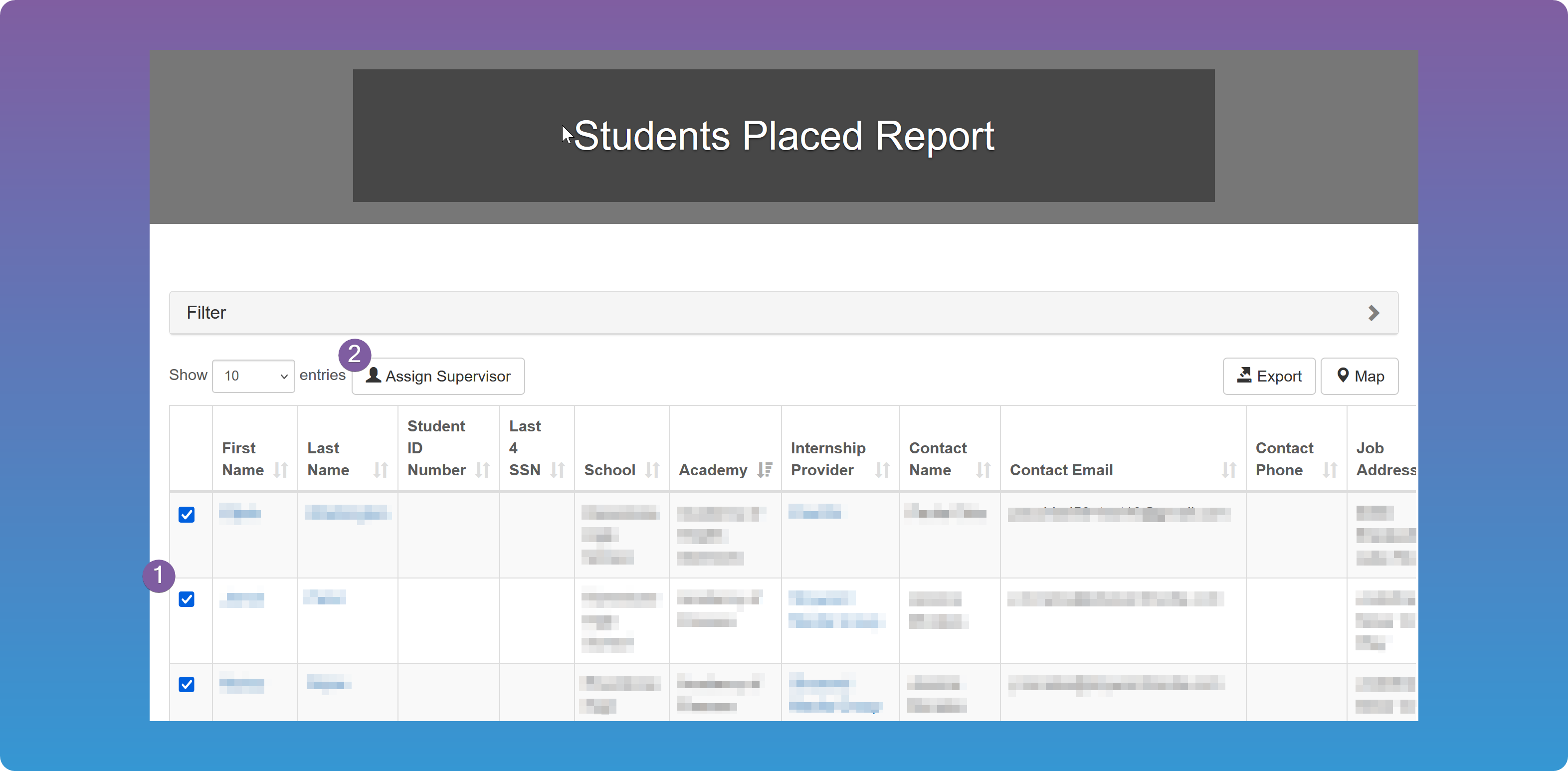
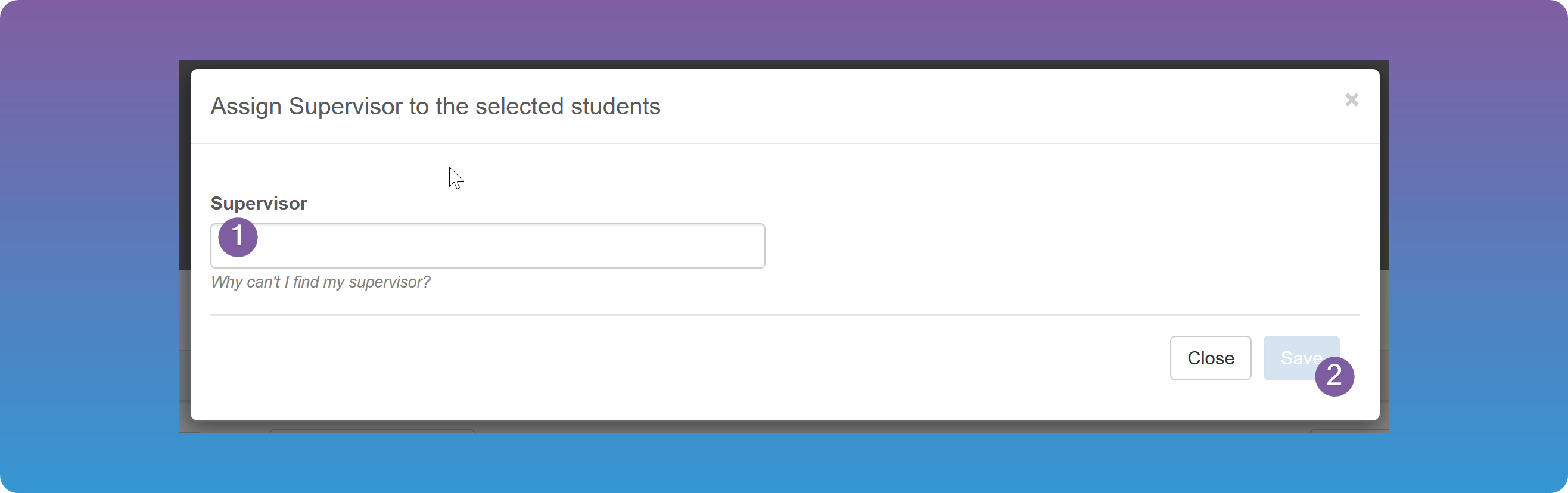
You can also batch assign supervisors from Reports - Students Placed by checking multiple students and clicking on the Assign Supervisor button. This will assign the student the chosen supervisor, which will give them access to the Student as well as the ability to filter all their students they are assigned to. You can use the filters to list the Student you need to assign the same supervisor to. The workplace supervisor will receive an email with a link to be able to review and approve/reject the Timesheet.
Workplace Supervisor
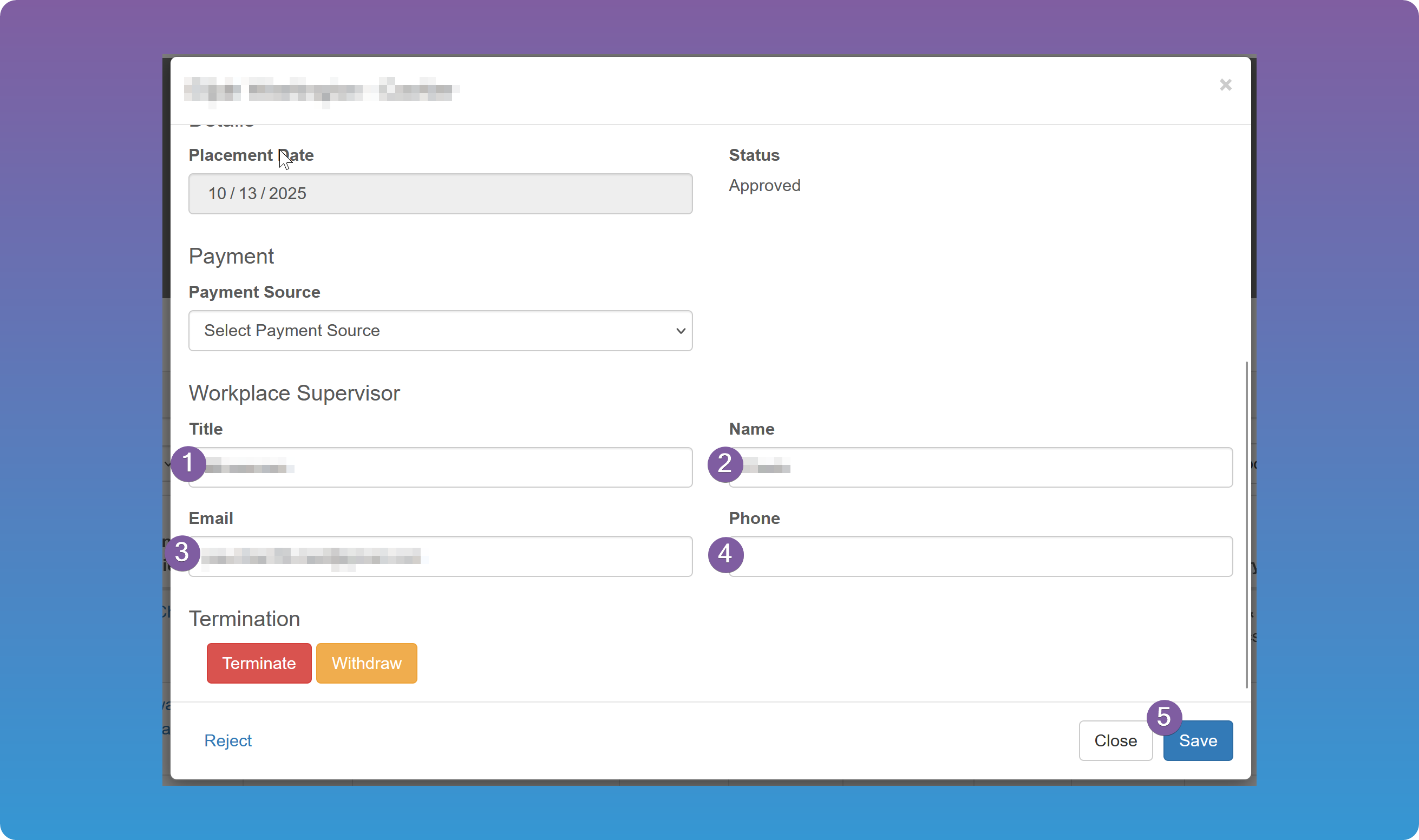
If the workplace supervisor is a different person than the Account owner, you need to assign them on the Internship record.
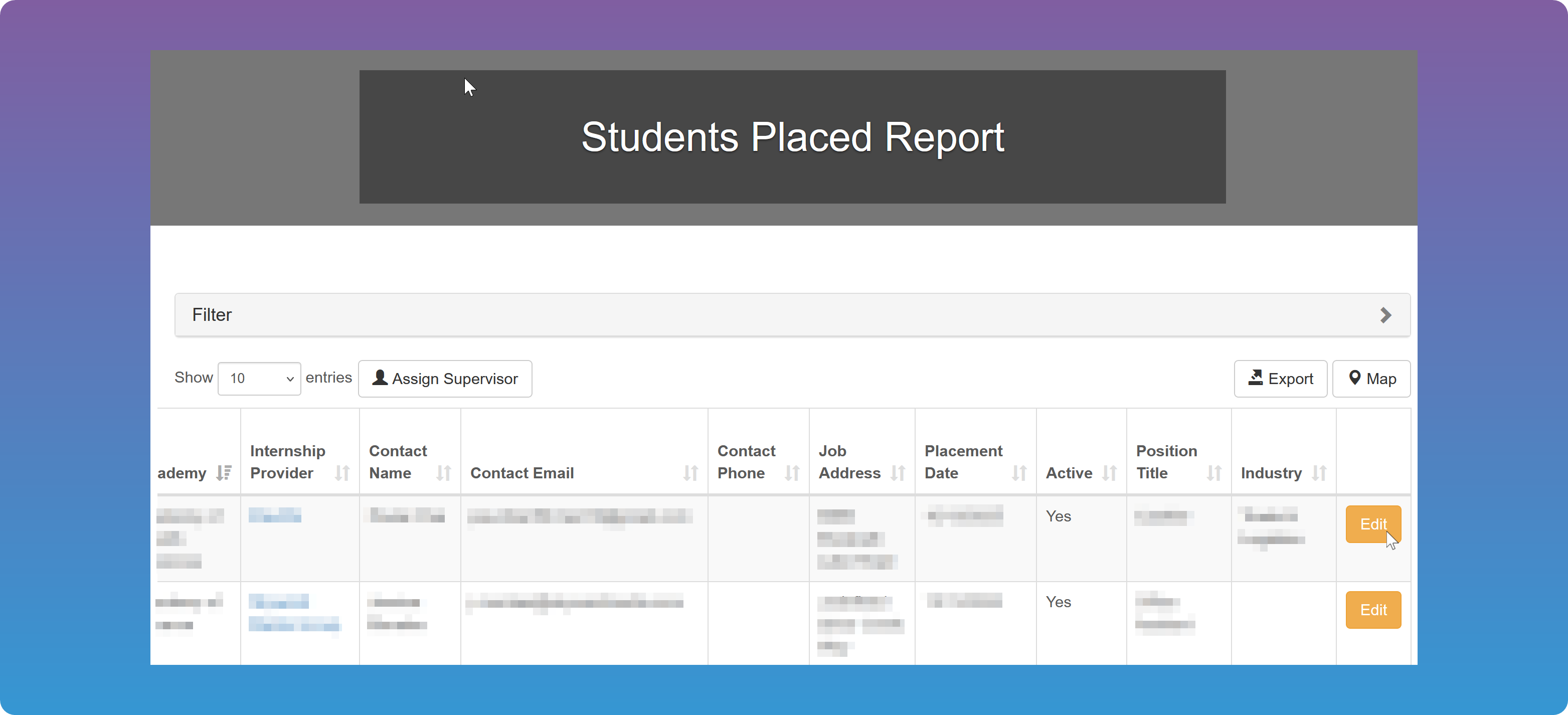
- Go to Reports - Students Placed and tap Edit on the relevant
Internship(last column).
- Scroll down to the workplace supervisor section and fill in the supervisor's data (see Internships).
- Save the changes.
If this is the case and no supervisor was assigned, the Timesheet will get stuck in the approval process, unless the Account owner intervenes.