Approving Users
How to Review and Approve Students
This step is only necessary if you have activated it from Settings > General Settings. (See Settings - General Settings for more info). If not activated, students will be able to register and directly use the system.
You can choose which admin roles can approve/decline Students from Settings > General Settings. (See Settings - General Settings for more info).
Every time a new Student registers, Admin Users (see Admin Users for details) will receive an email.
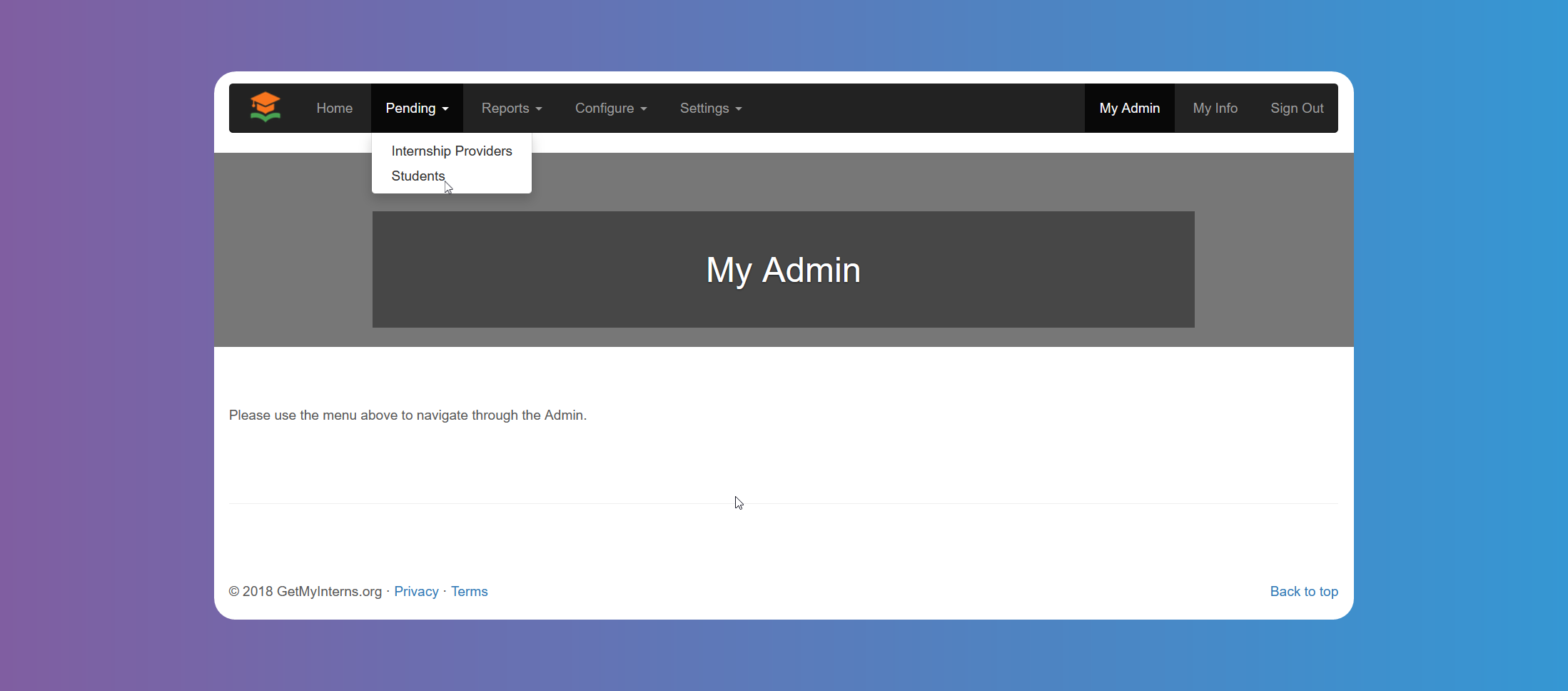
- Click on Pending > Students.
If there are multiple active seasons, you can use the filter to choose between active Seasons.
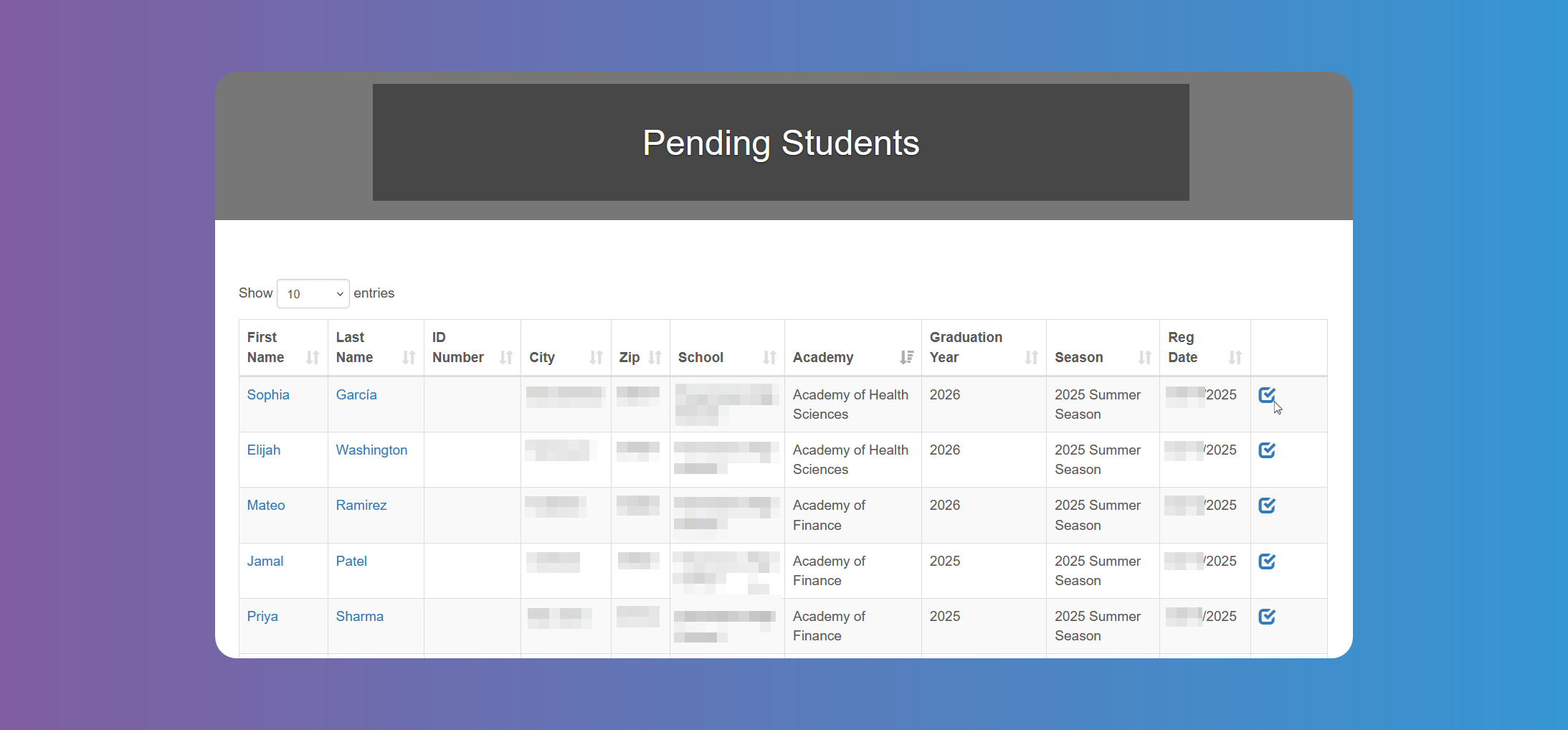
- Click on the icon to the right of the student to be approved or click on their name to view all the details before approving them.
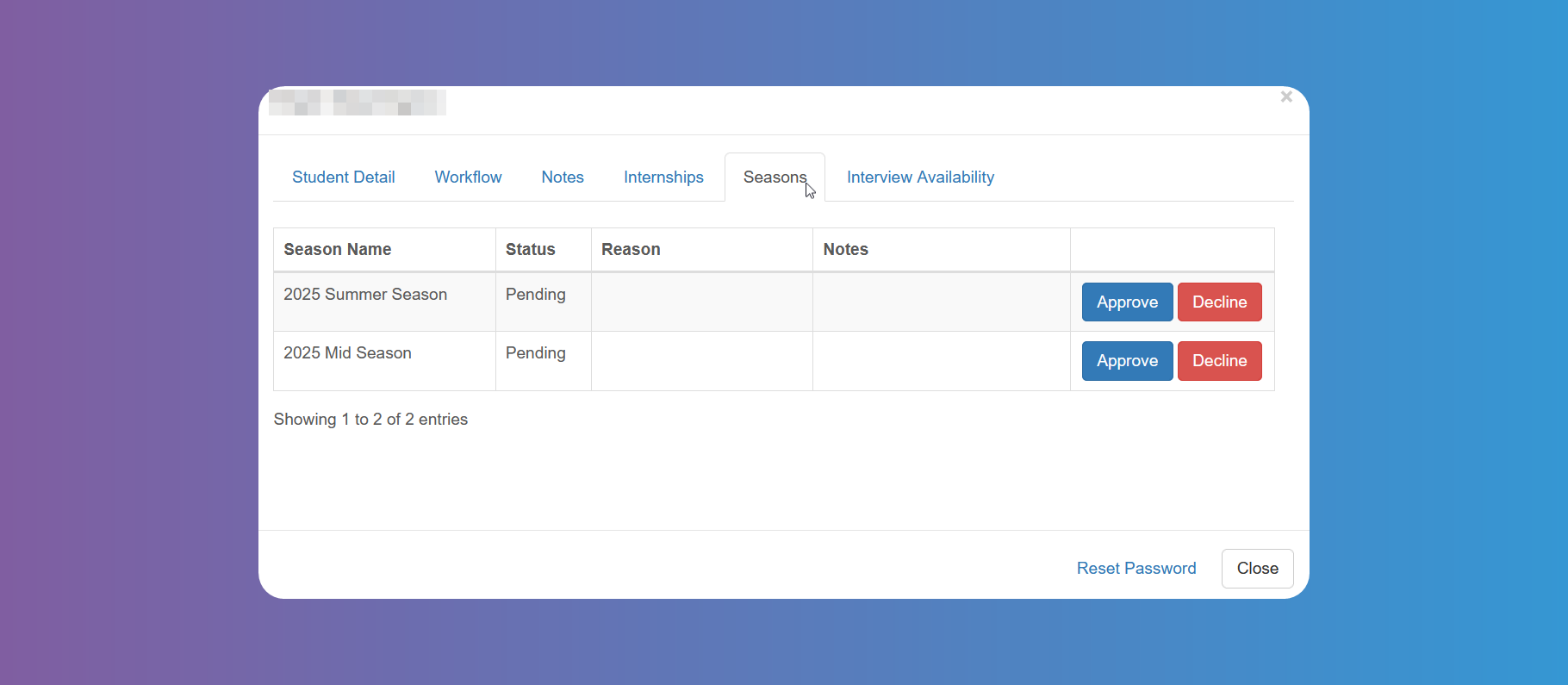
Tap on either the First Name or Last Name of the student to review and edit data such as students Details, Workflow, Seasons, etc. (see Students Details Modal for more info)
The students need to be approved for each active season they have applied to, either from the list of students, since each student will appear once for each season he has applied to, or from the Seasons tab.
How to Review and Approve Internship Providers
You can choose which admin roles can approve/decline Internship Providers from Settings > General Settings. (See Settings - General Settings for more info).
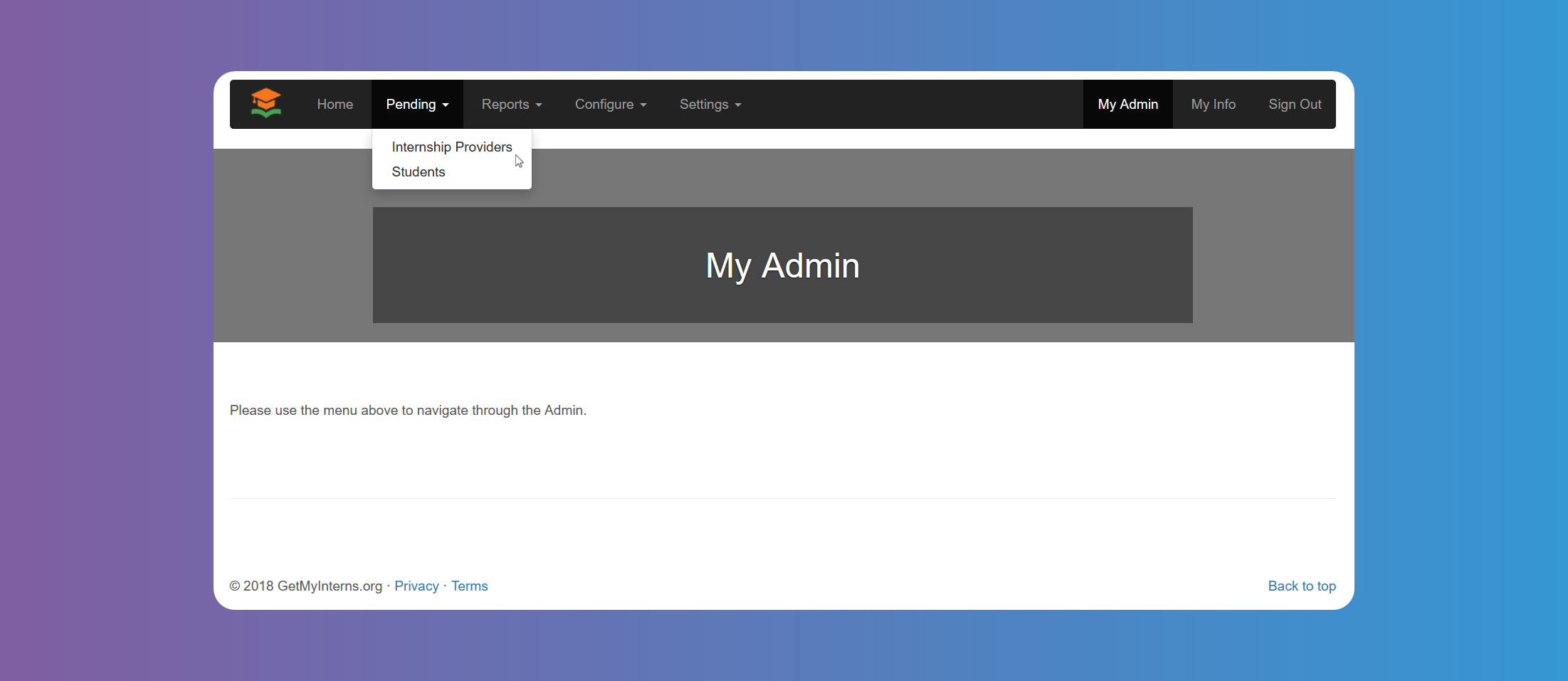
- Click on Pending > Internship Providers.
If there are multiple active seasons, you can use the filter to choose between active Seasons.
- Click on a name from the list to review, edit, approve or decline.
-
The
Internship Providerneeds to be approved for each activeSeasonit has applied to, either from the list of pending providers, since it will appear once for each season it has applied to, or from theSeasonstab of the Details modal. -
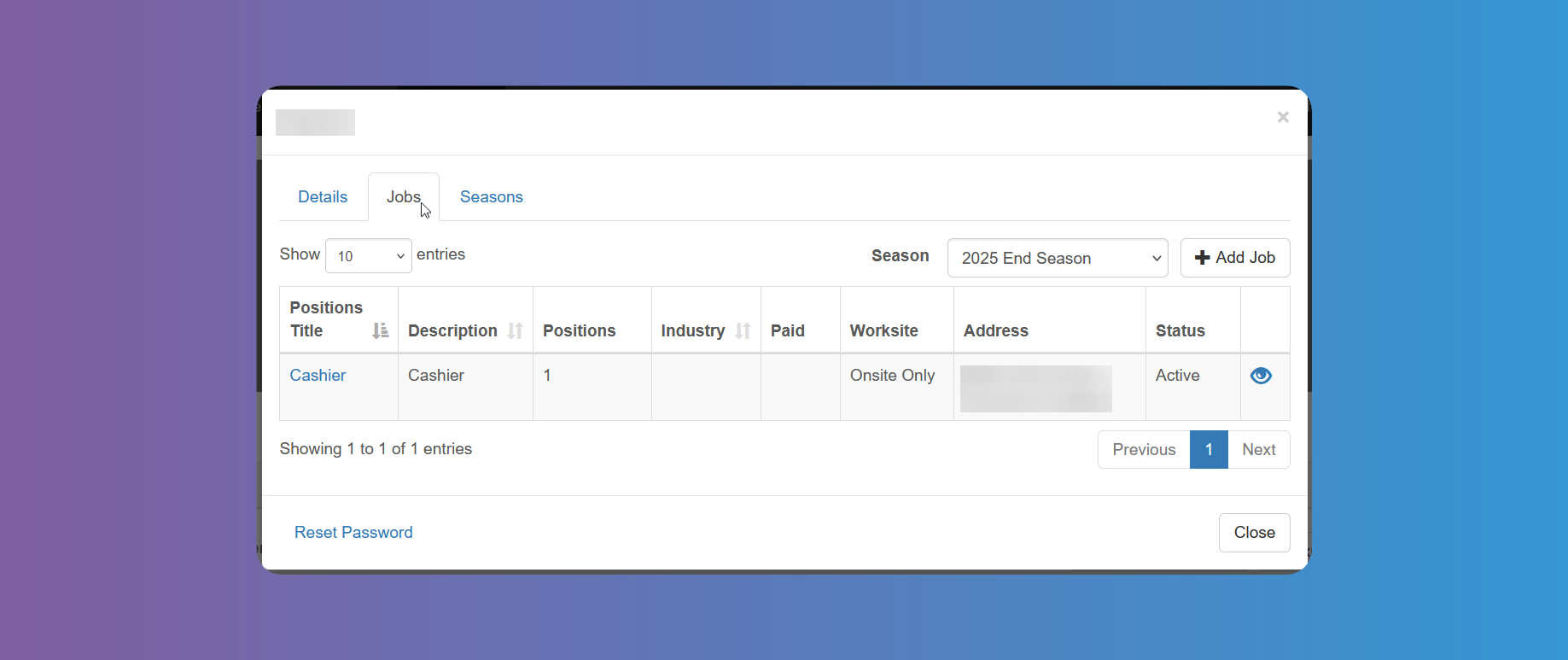
Jobs can be reviewed from the
Jobstab. They can also be hidden from students view if necessary. Tapping on an existing job title will allow editing.
Refer to Internship Providers Details Modal for more details.
After approving or declining, the provider's status can be changed from Reports > Internship Providers (see Reports - Internship Providers for more info) or from any other fields where the Internship Provider's name appears clickable.
The Internship Provider will receive an email when approved.