Timesheets
You can access a list and details of the Timesheets from Reports - Students Timesheets. This report shows all the Timesheets in the system. You can use the many filter fields to search and view Students Timesheets, as long as you have chosen to Enable them from the Timesheets Settings. You can also toggle between active Seasons from the filter.
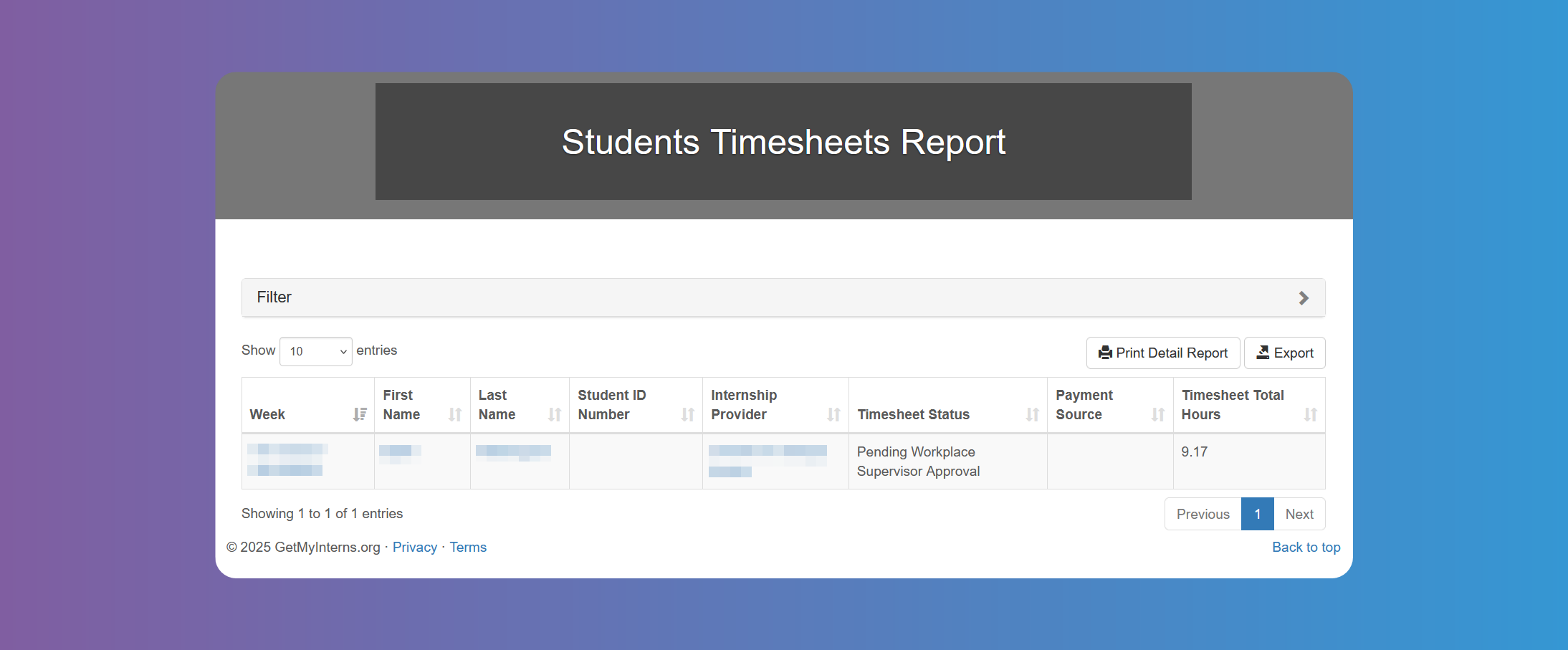
You can see the total hours worked for each week on the last column.
If you have chosen that a school supervisor needs to approve Timesheets from the Timesheet Settings, whether alone or with a workplace supervisor, be sure to edit the Student's details and enter the supervisor in the respective field (see photo 2 on Students Details Modal). Likewise, if you have chosen that a workplace supervisor needs to approve Timesheets from the Timesheet Settings, whether alone or with a school supervisor, be sure to edit the Internship's details and enter the supervisor in the respective field (see photo 2 on Internships).
Tapping on the dates at the Week column will open the Timesheet details for that week.
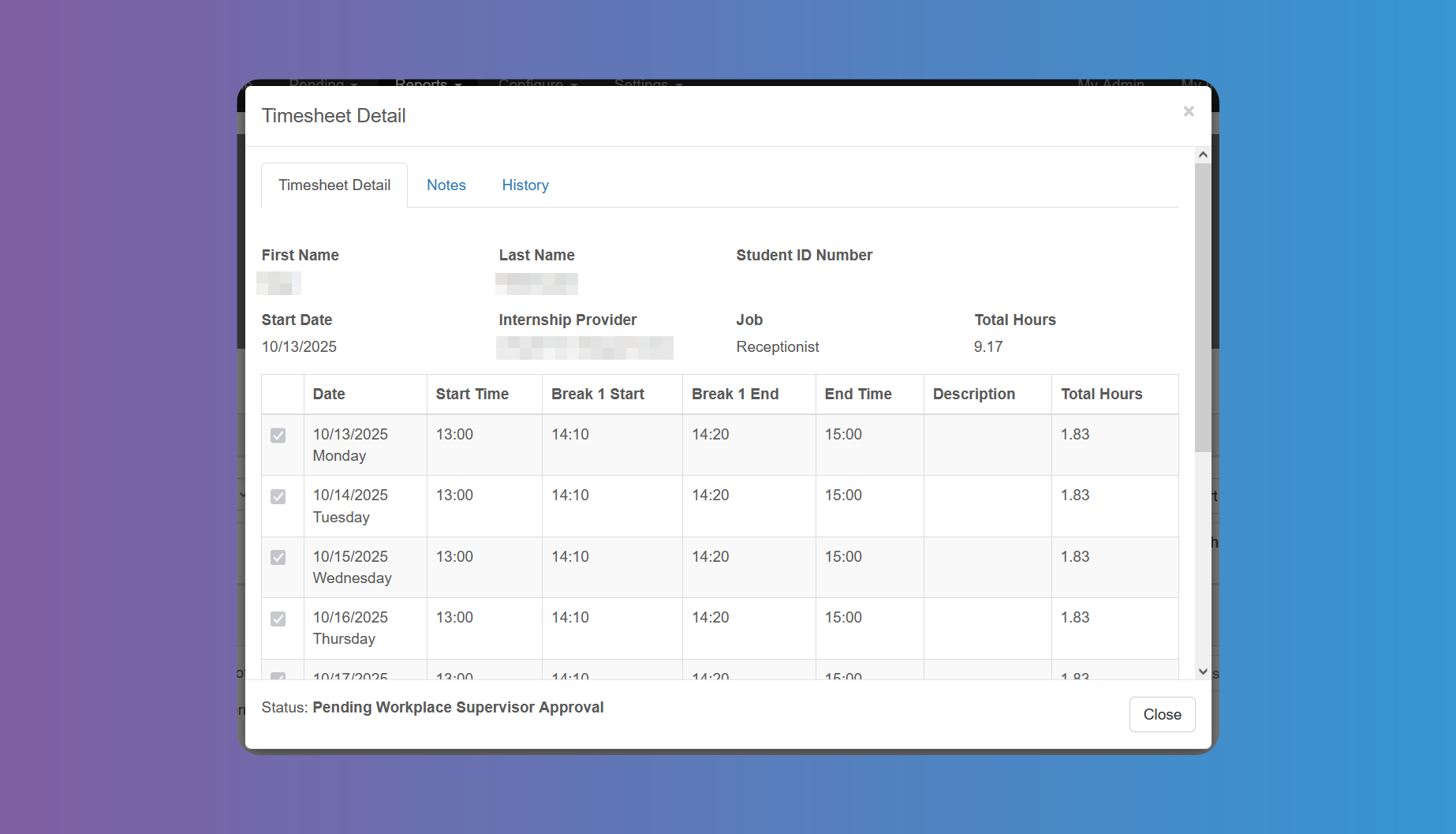
Bear in mind the fields appearing in the photo above may vary according to your Timesheet Settings.
You can see any notes written by a supervisor on the box below the table. You can Approve or Reject the Timesheet from the button at the bottom.
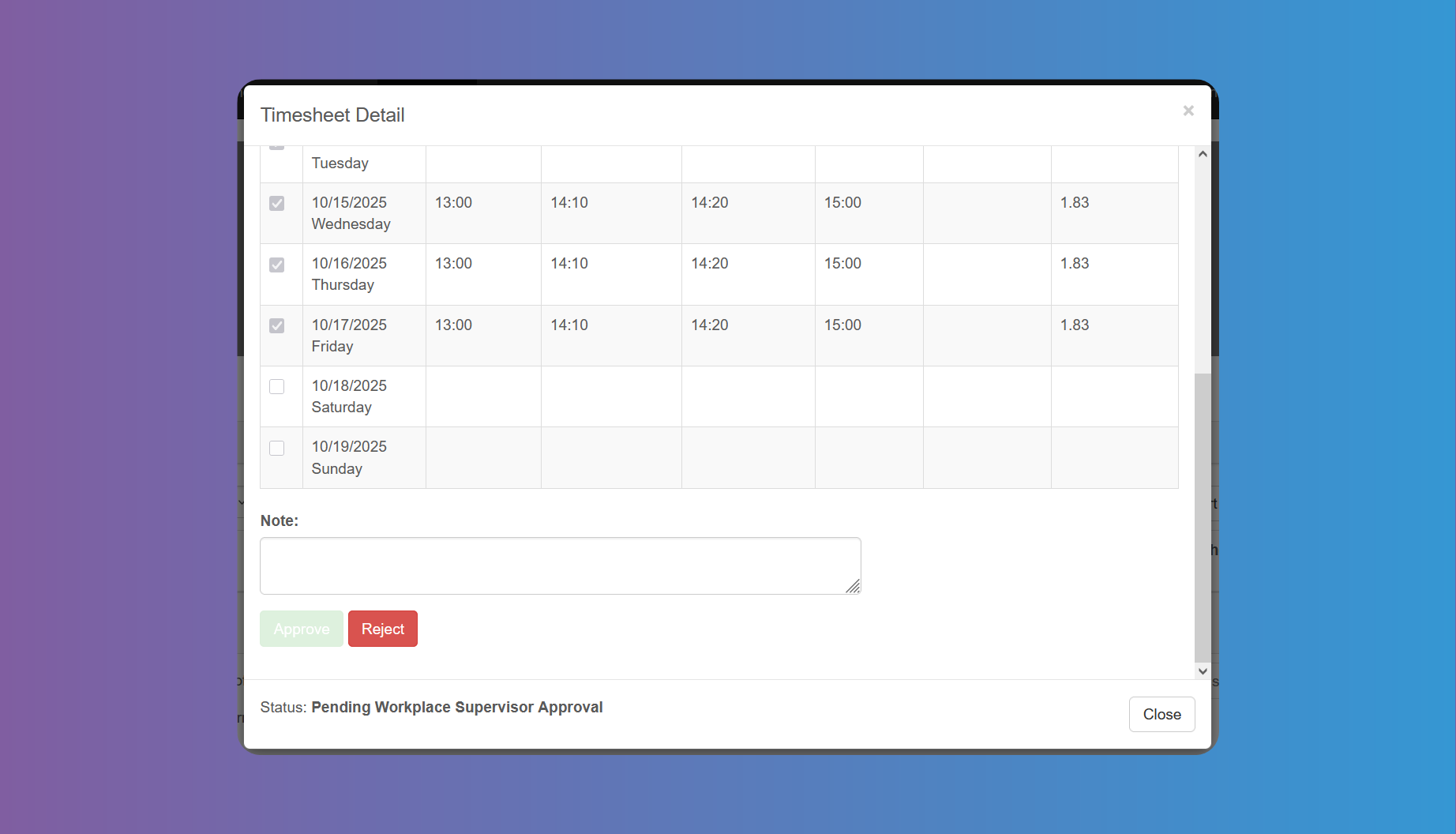
Below you will find the status.
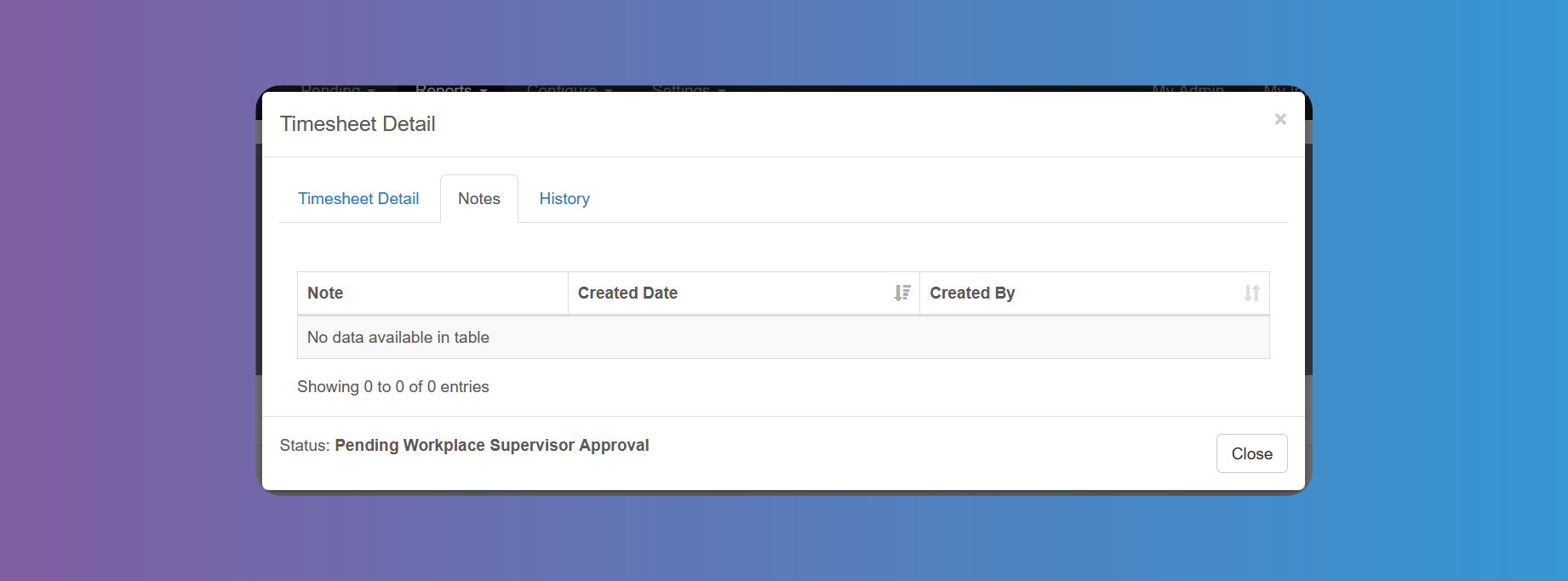
Tap on the Notes tab to see any notes created by a supervisor and the date.
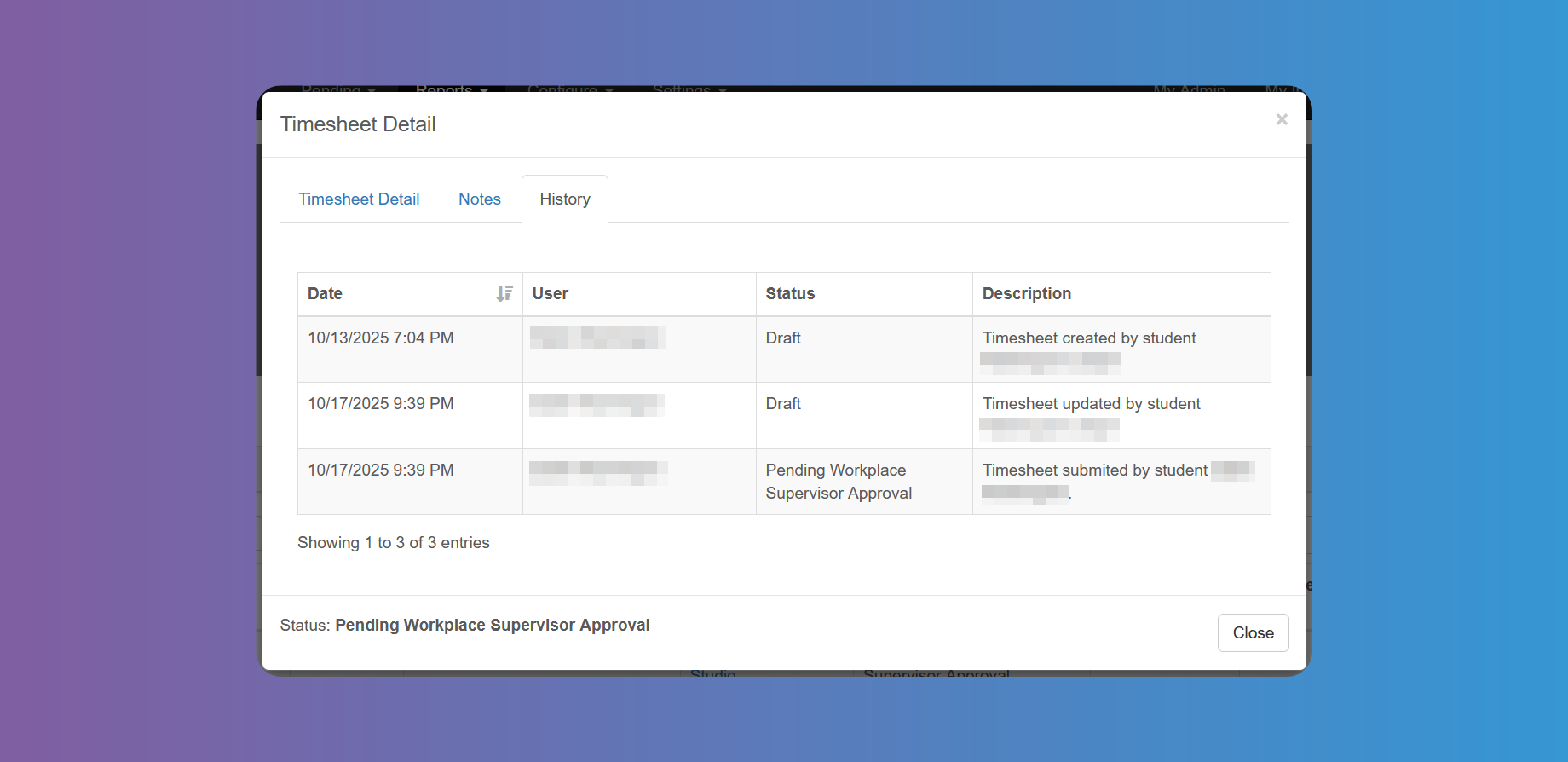
On the History tab you can see the actions taken and their dates, as well as the status.