Settings
Remember to click on Save at the bottom of the screen when you finish each settings item.
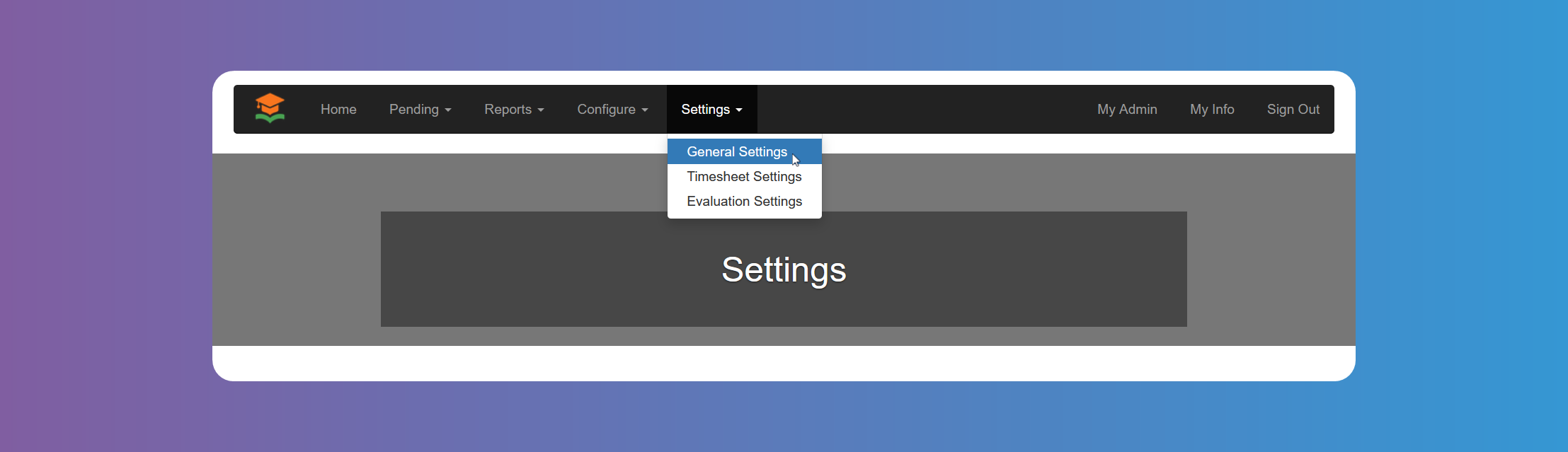
General Settings
Manage your account preferences and customize the platform through General Settings. You can configure fundamental aspects of your GetMyInterns account to suit your needs.
Enable Job Search
You can control whether students can search for internships by enabling or disabling Job Search.
Enable Student Registration
You can control whether students can register. For example, you might want to turn off Student Registration during off season to avoid confusion.
Enable Student Approval
Enable this setting if you want the chosen admin roles to manually approve all Student registrations. Otherwise, Students will be automatically approved after registering.
Enable Clever
You can choose to enable Clever so that Students can register to GetMyInterns using Clever single sing on.
Enable Self Service Job Placements
You can enable Students to accept Job offers directly, without the need of approval. Bear in mind you need to also enable Students on Hire Approval Roles and Hire Rejection Roles
Enable Internship Provider Agreement Signature
You can choose to use Jotforms platform to upload the Agreement and make it available to be signed online by the Internship Provider. When this is enabled and configured correctly, Internship Providers will see the uploaded agreement right after registration. Please note that signature of the agreement is not a requirement to approve an Internship Provider. It is up to the admin users to verify the agreement has been completed.
Block Offers to Already Placed Students
When enabled, it prevents internship providers from offering a job to students already placed in an internship.
Maximum Student Hires per Company
You can choose how many students at most an Internship Provider can hire. Leave it empty if you don't need to limit the number of Studentshired by an Internship Providers.
In case you need to assign a different maximum to a specific Internship Provider, you can do so from the Internship Providers details modal.
Hire Approval Roles
You can choose which admin role is allowed to accept job offers or whether Students can also accept them. For details about these admin users please see System Configuration - Admin Users.
Hire Rejection Roles
You can choose which admin role is allowed to reject job offers or whether Students can also reject them. For details about these admin users please see System Configuration - Admin Users.
Roles Allowed To Approve/Decline Pending Providers
You can choose which role is allowed to Approve or Decline pending Internship Providers. Account Admins, as the super admin, will always have access to do so. For details about these admin users please see System Configuration - Admin Users.
Roles Allowed To Approve/Decline Pending Students
You can choose which role is allowed to Approve or Decline pending Students. Account Admins, as the super admin, will always have access to do so. For details about these admin users please see System Configuration - Admin Users.
Students Placements Threshold
If you want to be informed via email when a number of placed students is reached, you can configure this setting. Please note you can have multiple thresholds. Only Account Admins will be notified.
Timesheet Settings
Manage your Timesheet preferences.
Enable Timesheets
Global flag to enable/disable timesheets.
Approver(s)
You can configure who needs to approve the timesheets and in which order. You always need at least one approver:
- Workplace Supervisor: this could be
Internship Provideruser who signed up to the system or the one specified by the admin user through theInternshipdetail modal. - Student Supervisor: this could be any Admin user who has access to the student or the one assigned through the
Studentdetail modal. - First Workplace Supervisor and then Student Supervisor: This specifies that the Workplace Supervisor will need to approve the timesheet first and then the Student Supervisor. The Student Supervisor won't be able to approve the timesheet until it is first approved by the Workplace Supervisor.
- First Student Supervisor and then Workplace Supervisor: This specifies that the Student Supervisor will need to approve the timesheet first and then the Workplace Supervisor. The Workplace Supervisor won't be able to approve the timesheet until it is first approved by the Student Supervisor.
Workday
- Enforce Total Breaks Min Length: this setting makes sure that all breaks for the day add up to the specified
Total Breaks Min Length. - Total Breaks Min Length: the minimum number of minutes on a given day (accross all breaks) the student needs.
- Enforce Workday Total Hours Max Length: this setting makes sure that the
Workday Total Hours Max Lengthis not surpassed. - Workday Total Hours Max Length: the maximum number of minutes a student is allowed to work on a given day.
Break 1
Setup whether the first break is enabled, required, and whether there should be an enforced minimum number of minutes for it.
Break 2
Setup whether the second break is enabled, required, and whether there should be an enforced minimum number of minutes for it.
Bear in mind the Break time will not be included in the total hours worked in the Timesheet.
Descriptions of Each Workday
Configure whether the Student will need to enter a description of what they worked on that day and whether it is required or not.
Messages
Users will receive the default message shown in the image below for confirmation, but you can append any extra message according to your needs.
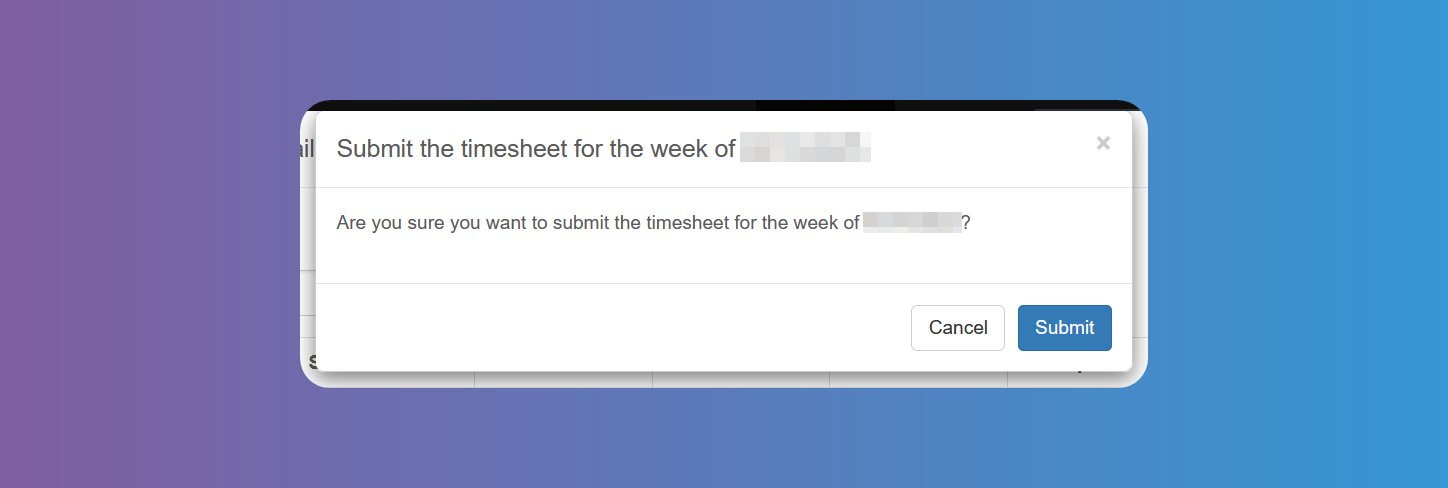
There are 3 extra messages you can configure:
Studentconfirmation extra message before submissionStudentsupervisor confirmation extra message before approval- Workplace supervisor confirmation extra message before approval
Evaluation Settings
Manage your Evaluation preferences for each Season.
Season
Choose the Season you want to configure the Evaluations for.
Enable Evaluations
Global flag to enable/disable evaluations.
See System Configuration - Evaluations for more information on how to configure evaluation questions.
Periods
You can configure how many evaluations the Internship Providers perform during each Season. These are controlled by Periods, which reprent the start and end date of when the Internship Providers can fill out the Evaluations.
Start by specifying how many periods, providing a name, and the start and end date.