Getting Started
Registering as an Internship Provider
Welcome to GetMyInterns! This guide will help you take your first steps.
Click on Register and then on Internship Providers to create your account. Fill in the required data as shown on the pictures below (there may be differences in the data required according to your district's needs).
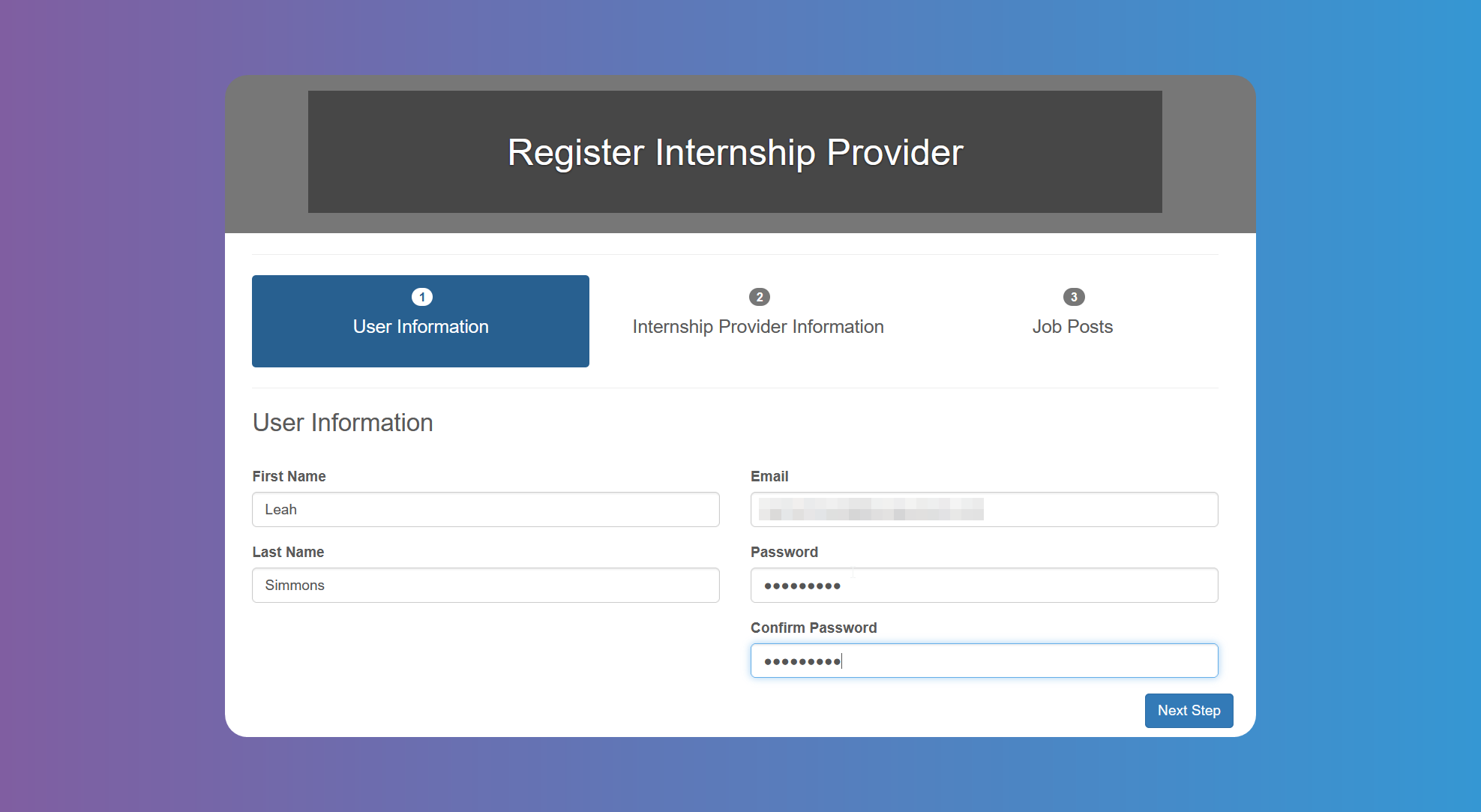
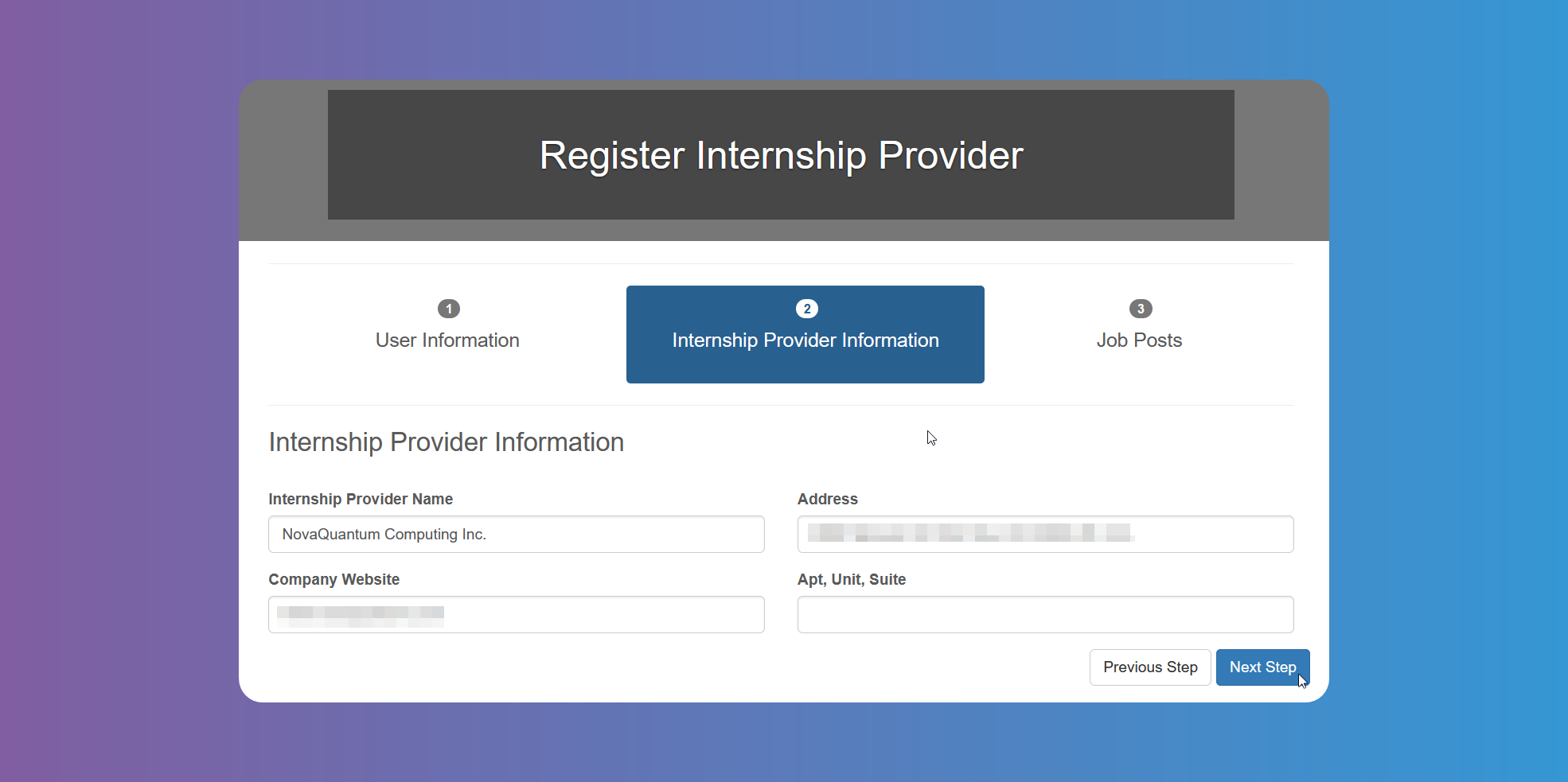
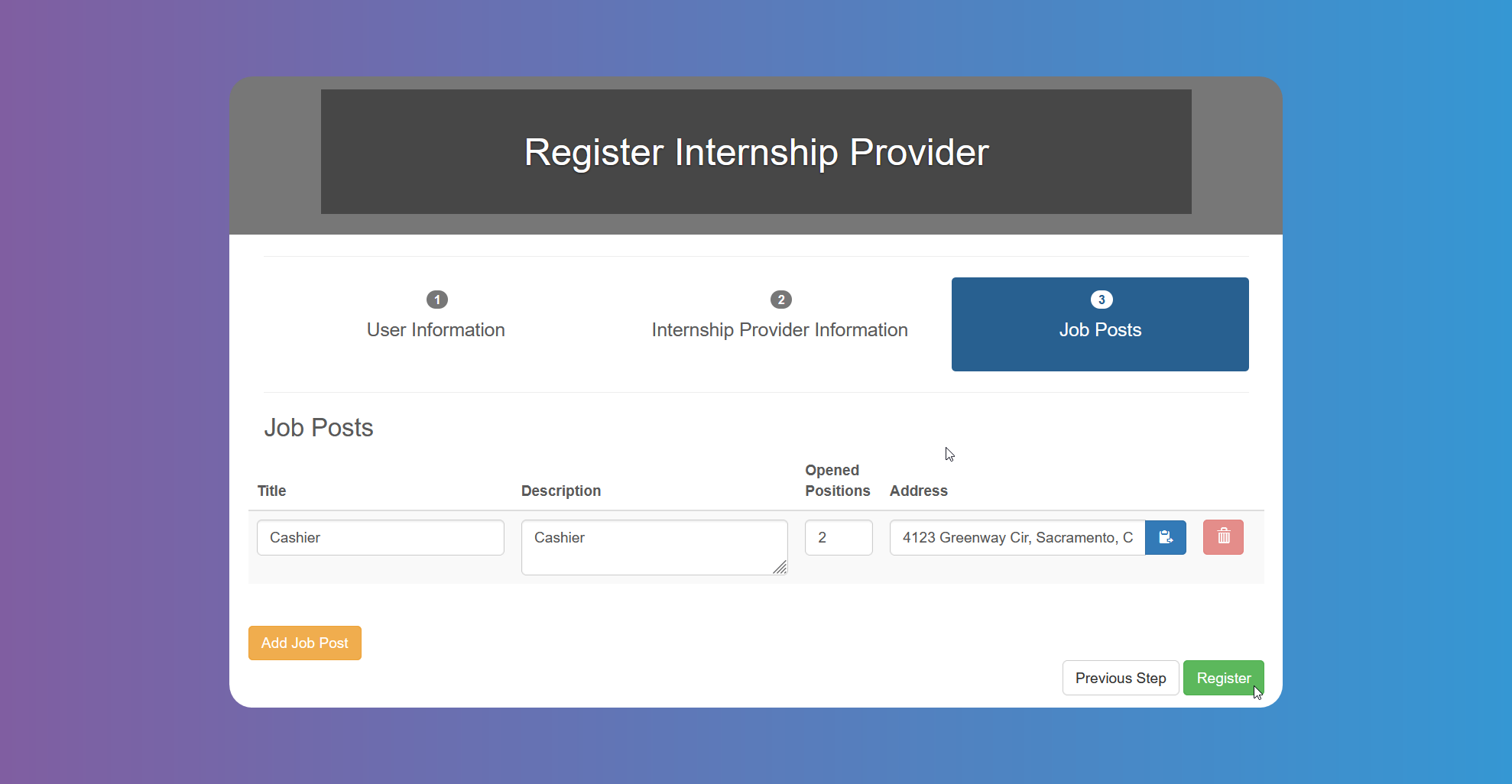
You can add more than one Job post clicking on the yellow button.
An Admin User can also sign you up, in which case you will receive an email.
Your account will remain in pending status until an Administrator reviews your information and approves you. You will receive an email when approved.
How to Set Up Your Provider Profile
After registering, you may need to choose a Season to apply to, if there are more than one active Season available.
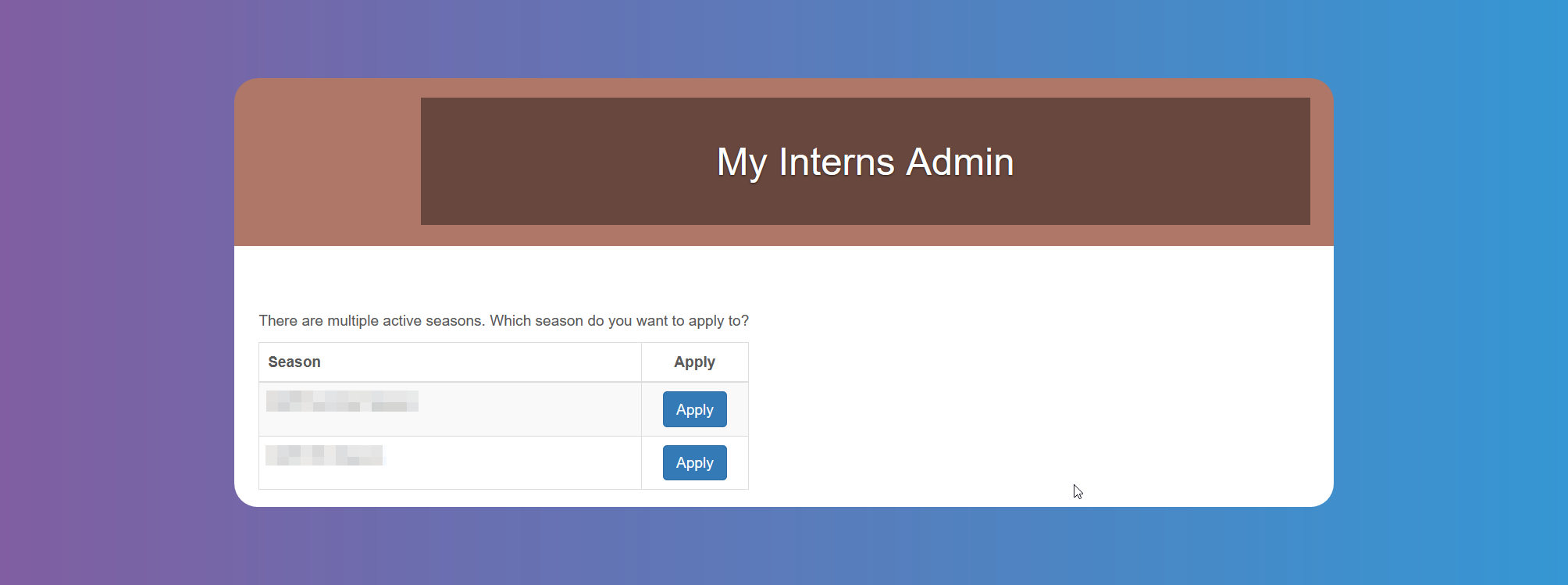
To apply to more than one Season, just click on the active one on the menu bar at the top of the screen and choose. Once you have chosen the Seasons, or if there was just one active Season, please wait to be approved to start using the platform.
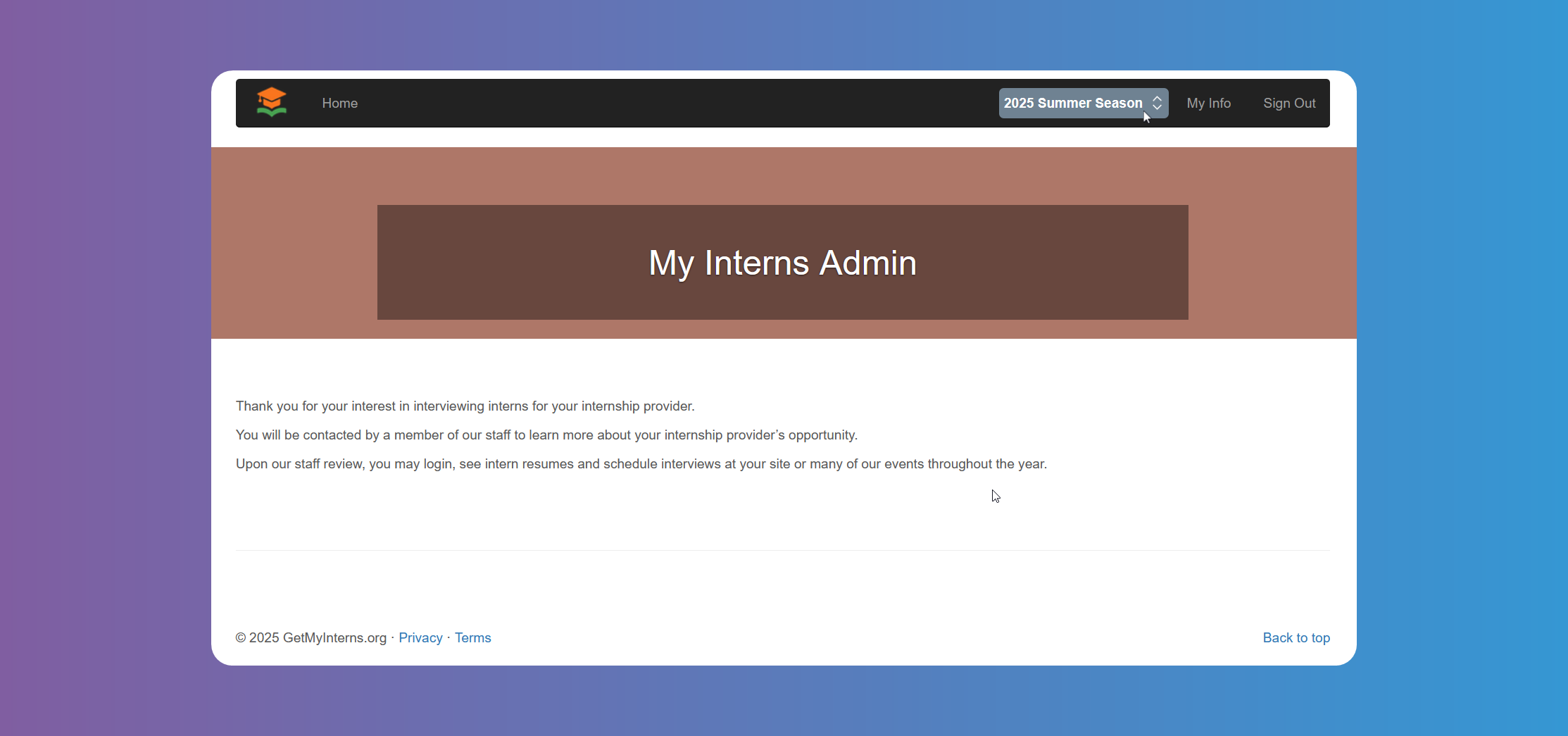
Once you have been approved, you will gain access to hire interns.
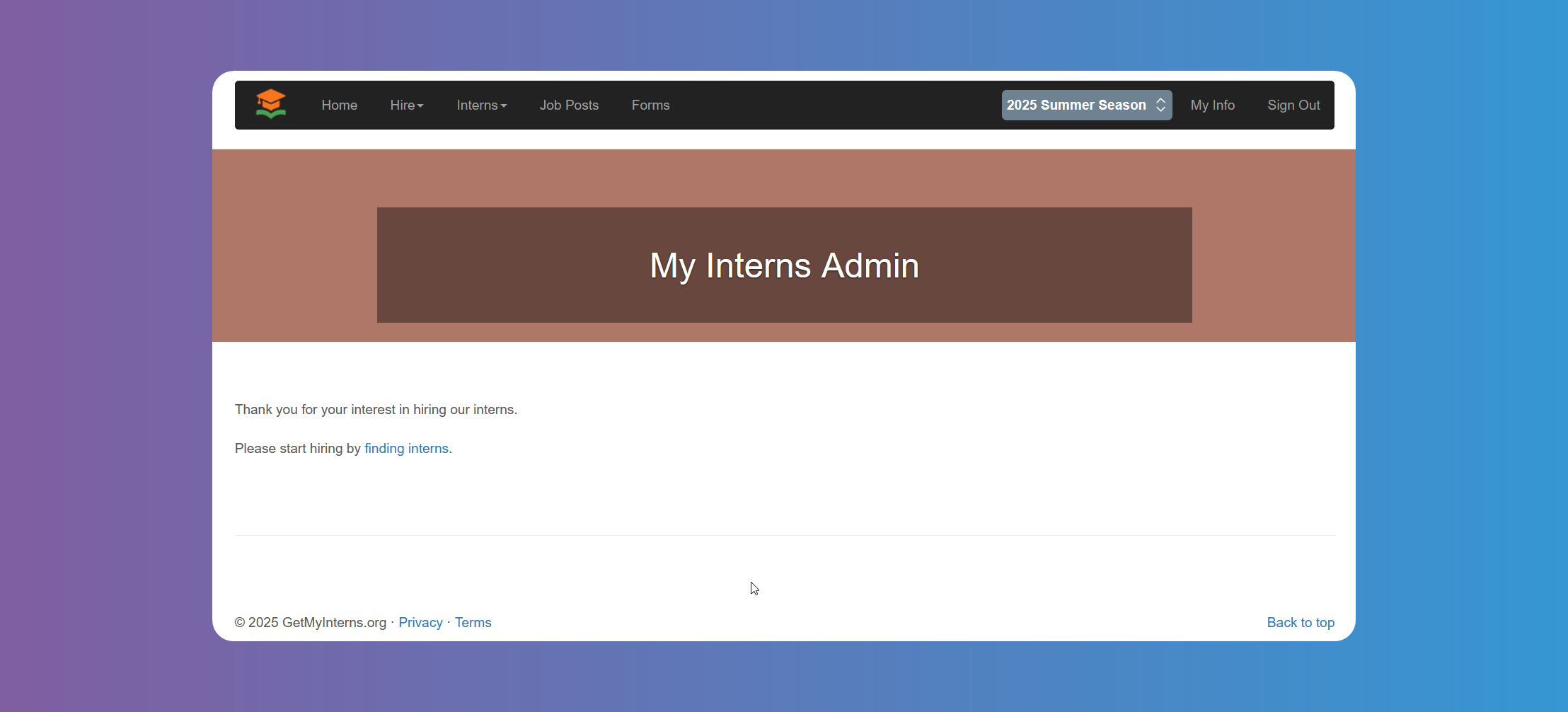
Click on My Info to edit your info or reset your password if needed.
In the Forms page you will find any forms and documents related to the program.
The Job Posts page will show you the Job posts you have already filled in for the chosen Season, and you can see and edit the details of each one by clicking on their title. You can add new ones by clicking on Add Job. Use the filter to toggle between Seasons if you have applied to more than one, or narrow your search.
Industry is the field of the Job offered or of the company/organization. You can use this to let the Student know in which field they will be carrying out their duties.